
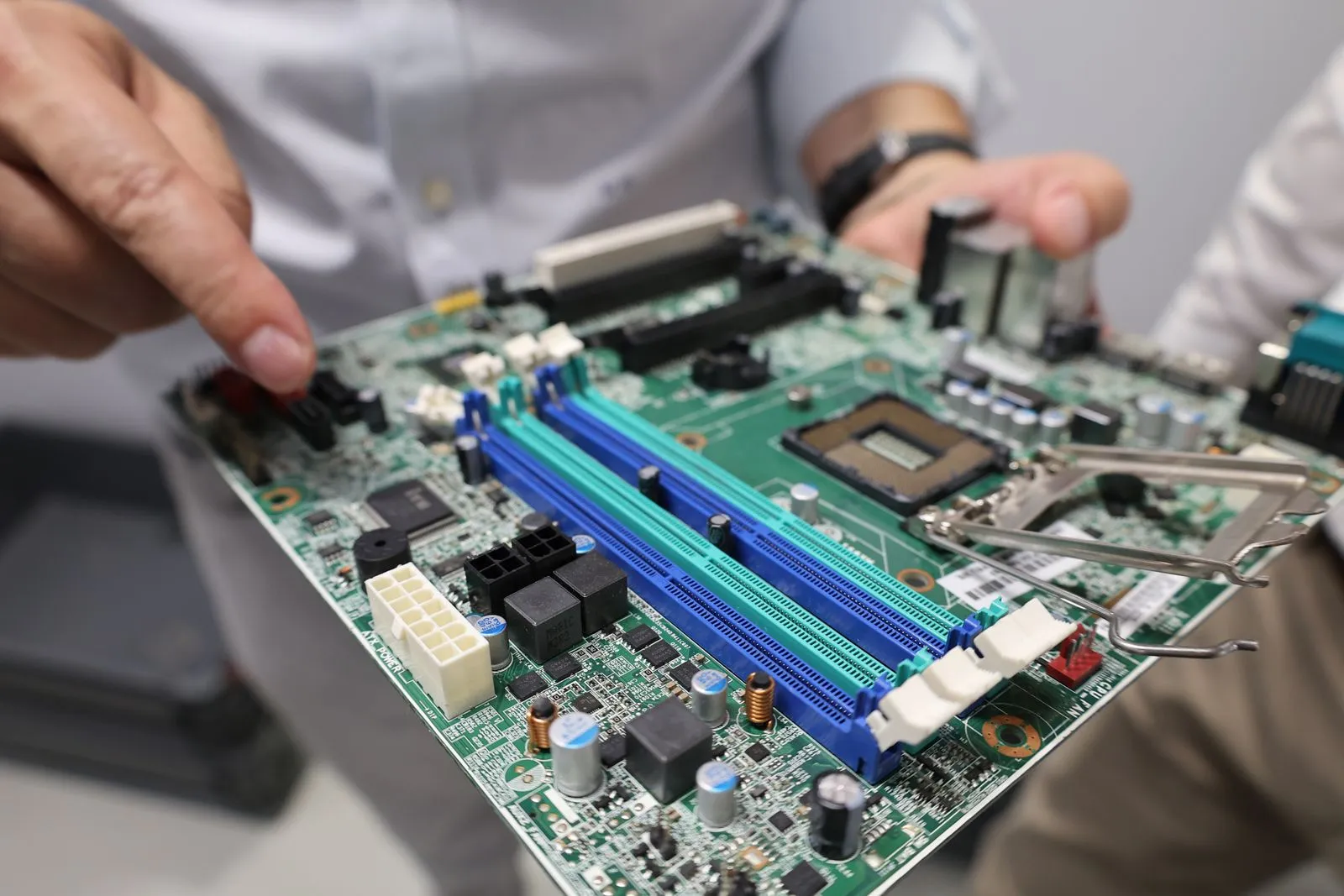
When a desktop won’t turn on, start with the simplest possibilities: a loose cable, switched-off power strip, or disconnected accessory. A few careful checks can help you identify an external power issue without opening the computer. First, look for any lights, fan movement, or sounds when you press the power button. Those clues can help distinguish a complete lack of power from a computer that starts but fails to display an image.
Check the Outlet and Power Strip
Make sure the wall outlet works by plugging in a lamp or another device you know is functional. If the desktop is connected to a power strip or surge protector, check that its switch is on and its indicator light is lit. Try plugging the computer directly into a working wall outlet to rule out a faulty strip.
If the outlet is controlled by a wall switch, confirm the switch is on. Avoid using damaged outlets, frayed cords, or power strips that feel hot, smell burnt, or make unusual sounds. If you notice any of these warning signs, unplug the equipment if it is safe to do so and stop testing.
Inspect the Power Cables
Check that the power cord is firmly seated in both the back of the desktop and the outlet or power strip. Look along the cord for cuts, crushed sections, bent prongs, or loose connectors. If the cord is detachable and appears damaged, do not continue using it.
Some desktop power supplies have a switch near the power cord socket. If yours does, confirm it is set to the on position. Do not open the power supply or the computer case to inspect internal parts; power supplies can retain hazardous electrical charge even after they are unplugged.
Disconnect Accessories and Observe
Unplug nonessential accessories such as USB drives, printers, external storage, and hubs. Leave the monitor, keyboard, and mouse connected, then try the power button once. A faulty accessory or connection can sometimes interfere with startup.
Notice what happens next. No lights or sounds may point to a power delivery problem. Fans or lights that start briefly and stop, repeated clicking, or a burning smell call for extra caution. If the computer appears to start but the screen remains blank, check that the monitor is powered on and connected to the desktop; that may be a display issue rather than a failure to turn on.
Know When to Stop
Stop troubleshooting if you see sparks, smoke, liquid damage, scorch marks, or a damaged power cord. Unplug the desktop only if you can do so safely, and do not repeatedly press the power button. Avoid removing internal components or trying improvised fixes.
Professional diagnosis makes sense when the outlet and cables work but the desktop remains unresponsive, shuts off immediately, or makes unusual noises. A technician can test the power supply and other internal components safely. Ithaca Desktop Repair can help assess a desktop in Ithaca when these basic checks do not resolve the problem.
Start with the outlet, power strip, and visible cables, then note whether the desktop shows any signs of life. Stop if you find damage, smell burning, or hear unusual sounds. If the basic checks do not identify the cause, contact a repair professional to arrange a safe diagnosis.